Tampilkan postingan dengan label Web Design. Tampilkan semua postingan

Senin, 16 Maret 2015

Get " Try my Code " The offline version of " Try it editor " by W3schools for learning html/xml

Software " try it editor "


Did you want to learn HTML / XML to design your web?
Then Try this Try it editor software.
It will help you to learn HTML / XML.

Tryit Editor is a lightweight HTML editor that uses CodeMirror to highlight code. It features an easy to use WYSIWYG interface, as well as many functions, such as saving to local disk. Features automatic updates of main script files.

Features
  • WYSIWYG - preview pane that lets you see exactly what you get
  • Lightweight - less than 200kb installed, download size less than 2mb
  • Syntax highlighting - see all, fix all
  • Browser independent - use on any modern browser (meaning NOT IE)
  • Auto updates - insure you get the latest build
  • Admin panel - (hint: press F2 and enter the konami code with no spaces, only versions with auto updates)


Introduction :

1) You haven’t  install it,
2) Just download the file and extract it,
3) Then open it with Firefox/Chrome

Software " try it editor "
4) Then do as picture
Software " try it editor "


Software " try it editor "


Now download Tryit Editor or Try my code Offline from here : Tryit Editor
Or for online version go to the Official site W3School : Tryit Editor v2.3

You may also try Google Chrome Extension for you Google Chrome Browser.

If you feel any problem then just email me.

Free Download Games for your Computer and Android from here:

Download Free Games =>> Android Games
 
Download Free Games =>>
Computer Games

Sabtu, 14 Maret 2015

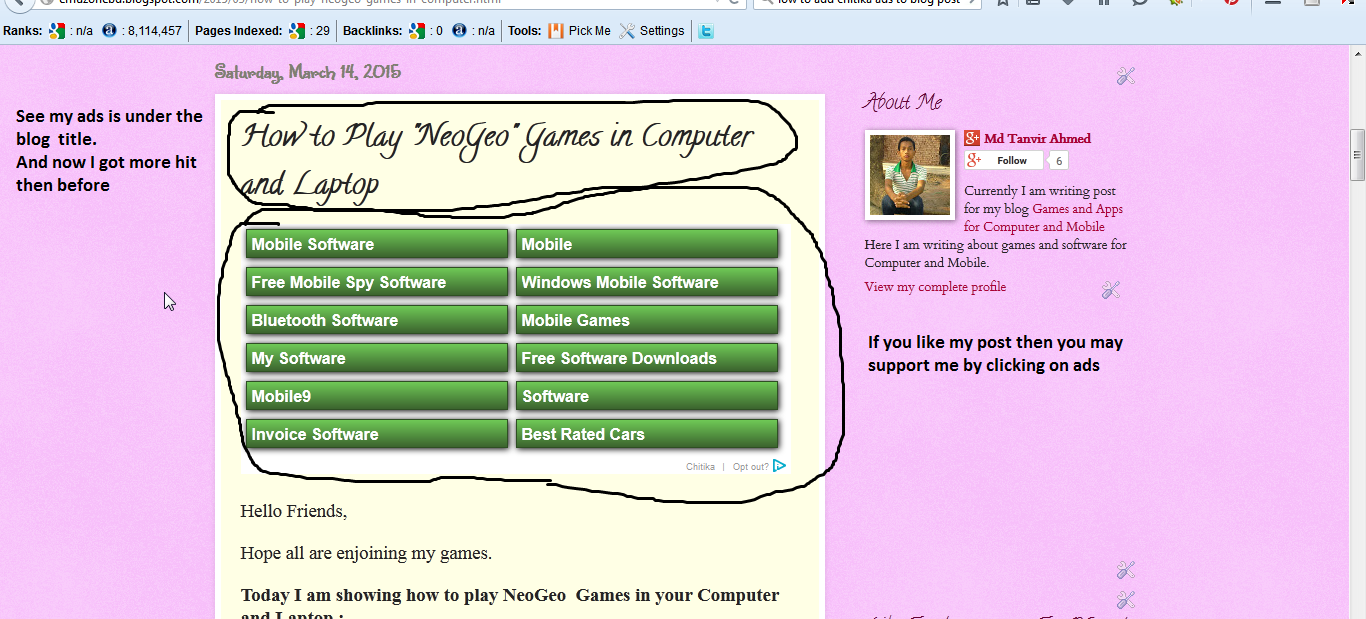
How to add "adsense/chitika" ads under post title to blogger

google adsense @ emuzonebd.blogspot.com


Hello friends,

Have you own a blog . And trying to earn money from advertisement by chitika.

You can give your advertisement to left,right,up down but you can't give it under post title.


If you are using your blog for monetization purposes. One thing that you need to put into consideration is  your ad placement. If your ads are placed in the right place, you are more likely to have a high CTR which is equivalent to a higher earnings. One such best place  to display your ads is just below the the post title and the post body. 

If you are using blogspot, you will notice that Google gives you a few option of how to place  your adsense but it doesn't show you how to place in between the title and post.  For other bloggers using other ads Networks like Chitika, then you just have to put the code manually.
Here is a step by step by step guide that will help you in putting your Chitika or even Adsense code ad in between the title and the post body.


Today I will see you how to add ads specially "adsense/chitika" under blog post.


1. At first open a new Microsoft word document

2. Then copy it Microsoft word document

<b:if cond='data:blog.pageType == &quot;item&quot;'> 
Chitika or Adsense code - inserted here
</b:if> 

3. Then go to your publisher page and Copy ad code from your "adsense/chitika" publisher

4. Then go here  Bloger ad code converter and paste the ad code and click on convert ad code

 5. Then the page will reload and after reload copy the code


 6. Now again go to Microsoft word document and paste the code instead of

" Chitika or Adsense code - inserted here "

7. Now press Ctrl+A to select all the text and again press Ctrl+C for copy all the text


8. Then go to http://www.blogger.com

9. Then click on your blog

10. Then click on Templet

11. Then click on backup/restore

12. Then click on download full templet

13. Then download it. ( If you got any problem to your blog you may restore it )


14. Then click on Edit HTML

15. Then copy this text from here
<data:post.body/>

16. Then go to the edit page and click on the box and press Ctrl+F for find and again press Ctrl+V for paste this text <data:post.body/> find the text and press enter

17. Then you will get result but if the find result like this do not paste the code you have got from Microsoft word document
18. If the search result is like this paste the modified ad code up to the <data:post.body/> and shown in the picture
19. Now click on save templet and then back and then view blog

20. If you are done as I have told You will see the ads like mine


Warnings:

  1. If your ads is not showing then restore the templet,
  2. You have to paste the modified ad code every search result in edit HTML until the ads work


Download Free Games =>> Android Games
Download Free Games =>>
Computer Games 

If you like my post then you may support me by clicking on my ads.